Skip to content
0
  • Recent
  • Tags
  • Popular
  • Search
  • ads.txt
  • Recent
  • Tags
  • Popular
  • Search
  • ads.txt
Collapse
Lime-it.us
rickR

rick

@rick
administrators
About
Posts
94
Topics
71
Shares
0
Groups
1
Followers
1
Following
1

Posts

Recent Best Controversial

  • Remove all log files debian centos
    rickR rick

    Do not just delete all the log files!!!

    There are systems which require files to be present.

    cd /var/log
    

    for CLEAN in $(find /var/log/ -type f)
    do
    cp /dev/null  $CLEAN
    done
    

    Logs will be deleted permanently, files will be left behind.

    This method does not solve the problem, it simply removes the comments within the log files.

    Linux Systems Guides clean logs log runaway

  • [LibClamAV] Detected duplicate databases
    rickR rick

    Duplicate database error from clamd:

    [LibClamAV] Detected duplicate databases /var/lib/clamav/daily.cld and /var/lib/clamav/daily.cvd. The /var/lib/clamav/daily.cld database is older and will not be loaded, you should manually remove it from the database directory.
    

    The message explains which database is older, however it’s always best practice to have a look for yourself.

    cd /var/lib/clamav/
    
    ls -l
    
    total 579308
    -rw-r--r-- 1 clam clam    766976 Jan 24 05:55 bytecode.cld
    -rw-r--r-- 1 clam clam 131058688 Jan 24 03:15 daily.cld
    -rw-r--r-- 1 clam clam  44118560 Jan 24 05:55 daily.cvd
    -rw-r--r-- 1 clam clam 307499008 Jan 24 05:54 main.cld
    -rw-r--r-- 1 clam clam 109143933 Jun 13  2016 main.cvd.rpmnew
    -rw------- 1 clam clam       156 Jan 24 05:55 mirrors.dat


    Look at the time as well as the date.

    rm -rf daily.cld
    
    total 451188
    -rw-r--r-- 1 clam clam    766976 Jan 24 05:55 bytecode.cld
    -rw-r--r-- 1 clam clam  44118560 Jan 24 05:55 daily.cvd
    -rw-r--r-- 1 clam clam 307499008 Jan 24 05:54 main.cld
    -rw-r--r-- 1 clam clam 109143933 Jun 13  2016 main.cvd.rpmnew
    -rw------- 1 clam clam       156 Jan 24 05:55 mirrors.dat
    

    Restart clamd

    service clamd restart
    

    fin!

    Linux Systems Guides

  • Create database & user grant permissions
    rickR rick

    Once mysql / mariadb is installed:

    mysql -u root -p
    

    Where -u = User

    Where -p = Password

    Create a database: Note, set characture set at the same time

    Where ‘application_data’ = the database name Change this for your specific requirements

    CREATE DATABASE application_data CHARACTER SET utf8 COLLATE utf8_general_ci;
    

    Create User:

    Where ‘application_user’ = database user, change this to whatever user you wish

    Where ‘PASSWORD’ = Your private application password

    CREATE USER 'application_user'@'localhost' IDENTIFIED BY 'PASSWORD';
    

    Give user privileges on database / there are many different reasons to learn what privileges to allow what user!

    GRANT ALL PRIVILEGES ON application_data.* TO 'application_user'@'localhost';
    

    Then always:

    FLUSH PRIVILEGES;
    

    Finally:

    quit
    
    Linux Systems Guides permissions mariadb grant user mysql create database

  • VLAN1 Administratively down
    rickR rick
    enable
    
    conf t
    
    int vlan1
    
    no shut
    
    end
    
    copy run start
    

    Check your work

    sh ip int bri vlan1
    

    Output:

    Interface           IP-Address             OK?  Method   Status         Protocol
    Vlan1                192.168.0.101       YES  NVRAM  up                up
    
    Cisco administrative cisco down vlan1

  • print OS version
    rickR rick

    Find centOS version:

    cat /etc/centos-release
    

    RHEL:

    cat /etc/redhat-release
    
    Linux Systems Guides os version linux command line

  • Bhyve Hypervisor Freebsd ZFS
    rickR rick

    Get updated to at least Freebsd 11.0

    Bhyve will function on previous releases after 10.2, maybe.


    Install bhyve and bhyve grub:

    pkg install vm-bhyve grub2-bhyve
    

    Load kernel modules:

    add these directives into /boot/loader.conf:

    if_bridge_load=”YES”
    if_tap_load=”YES”
    nmdm_load=”YES”
    vmm_load=”YES”
    

    We could load the modules manually, however I’ve had issues doing this the first time, but go ahead and try, maybe it will ‘just work’ for you.

    kldload if_bridge if_tap nmdm vmm
    

    When that does not work, (you might not even know at this point) just reboot and the modules will be loaded at that time.


    Add the following lines to /etc/rc.conf:

    vm_enable=”YES”
    vm_dir=”zfs:zroot/vms”
    vm_list=””
    vm_delay=”5″
    

    If you’ve not already setup storage, lets do it now. If you’ve not changed the default name for ZFS, it should be ‘zroot’, find out by running:

    zfs list
    

    On this machine the output is:

    NAME                 USED  AVAIL  REFER  MOUNTPOINT
    bootpool             144M  1.72G   142M  /bootpool
    zroot               30.8G   860G    88K  /zroot
    zroot/ROOT          17.4G   860G    88K  none
    zroot/ROOT/default  17.4G   860G  17.4G  /
    zroot/tmp           40.3M   860G  40.3M  /tmp
    zroot/usr           11.6G   860G    88K  /usr
    zroot/usr/home      8.55G   860G  8.55G  /usr/home
    zroot/usr/ports     2.45G   860G  2.45G  /usr/ports
    zroot/usr/src        633M   860G   633M  /usr/src
    zroot/var           10.5M   860G    88K  /var
    zroot/var/audit       88K   860G    88K  /var/audit
    zroot/var/crash       88K   860G    88K  /var/crash
    zroot/var/log        692K   860G   692K  /var/log
    zroot/var/mail       244K   860G   244K  /var/mail
    zroot/var/tmp       9.33M   860G  9.33M  /var/tmp
    zroot/vms           1.62G   860G   500M  /vms
    zroot/vms/freebsd1  1.13G   860G  1.13G  /vms/freebsd1
    

    As we can see, ‘zroot’ is the pool name. !Important If the pool is named something other than ‘zroot’ , you must change the directives we did a minute ago within /etc/rc.conf to reflect the proper zpool.

    Create the storage:

    zfs create -o mountpoint=/vms zroot/vms
    

    Initialize:

    vm init
    

    If you get the error message “$vm_enable is not enabled in /etc/rc.conf!” ect… , this is due to the modules not being loaded as described earlier, just reboot and come back. Bookmark this page or check your history.

    Now we copy the templates to the /vms directory we’ve created:

    cp /usr/local/share/examples/vm-bhyve/* /vms/.templates/
    

    Creating the network bridge VMs will use:

    First lets find out what our inteface is called:

    ifconfig
    

    In this case the interface is called ‘em0’

    So:

    vm switch create public
    
    vm switch add public em0
    

    Edit the template config files to use zvol instead of the IMG or iso You can use the iso, however we have ZFS for a reason don’t we.

    Templates are located where we copied them to earlier: /vms/.templates

    List all config files in the .templates directory:

    ls /vms/.templates
    

    Here are the default conf files listed:

    alpine.conf		centos7.conf		debian.conf		freebsd-zvol.conf	openbsd.conf		windows.conf
    centos6.conf		config.sample		default.conf		netbsd.conf		ubuntu.conf
    

    Have a look at the debian.conf template:

    loader="grub"
    cpu=1
    memory=512M
    network0_type="virtio-net"
    network0_switch="public"
    disk0_type="ahci-hd"
    disk0_name="disk0.img"
    grub_run_partition="1"
    grub_run_dir="/boot/grub"
    

    You can edit what you wish, but know what your editing, and what it will do.

    To make use of zvol we edit both “disk0_name” & “disk0_dev” from the above to look like this:

    loader="grub"
    cpu=1
    memory=512M
    network0_type="virtio-net"
    network0_switch="public"
    disk0_type="ahci-hd"
    disk0_name="disk0"
    disk0_dev="sparse-zvol"
    grub_run_partition="1"
    grub_run_dir="/boot/grub"
    

    Time to grab an iso, lets use freebsd: Head over to https://download.freebsd.org/ftp/releases/amd64/amd64/ISO-IMAGES/11.1/ and grab 11.1

    Copy the URL of the iso Running the following will snatch the image and deposit it locally.

    vm iso https://download.freebsd.org/ftp/releases/amd64/amd64/ISO-IMAGES/11.1/FreeBSD-11.1-RELEASE-amd64-disc1.iso
    

    Time to create the VM: This will create a VM of freebsd named ‘freebsd11’ with a disk size of ten gigs

    vm create -s 10G freebsd11
    

    Now install the image we just downloaded:

    vm -f install freebsd11 FreeBSD-11.1-RELEASE-amd64-disc1.iso
    

    You will be asked to select [vt100] for the console type, unless you know what’s up otherwise, choose it. Now continue with installation as you would normally.

    Once install is complete, log in and play, then type:

    poweroff
    

    List all VM’s:

    vm list
    
    NAME            DATASTORE       LOADER      CPU    MEMORY    VNC                  AUTOSTART    STATE
    freebsd11        default         bhyveload   1      256M      -                    No           Running (1923)
    

    Start the VM:

    vm start freebsd11
    

    To destroy the VM:

    vm destroy freebsd11
    

    To edit the config file for specific VM:

    vm configure freebsd11
    

    This will open the config file in your default editor.

    FreeBSD Notes hypervisor freebsd bhyve vm zfs

  • Screen detach attach
    rickR rick

    Start screen:

    screen ./run.sh
    

    Detach from session and allow script to continue running:

    **Keystroke sequence**
    Ctl+a then Ctl +d
    

    Re-atatch

    screen -r
    

    View active screen sessions

    screen -ls
    

    Useful hack: At times screen will grant you issues to deal with, and not permit re attachment to the session. Or even to start a screen session. Run the following filth to circumvent said issue, either before starting screen session if needed, or before re attaching if required. Exactly as below, not the script you wish to run!

    script /dev/null
    

    If your always having issues with screen, you can set the /dev/null systemwide or in just one profile.

    Add the following to the users /.bashrc file to always sent stdout to /dev/null , or nowhere

    function screen() {
      /usr/bin/script -q -c "/usr/bin/screen ${*}" /dev/null
    }
    

    Or:

    Run everything in one line:

    sudo su - rick -c "script -c bash /dev/null:"`
    

    Or:

    sudo -u rick script -q -c 'screen -dr myscreen' /dev/null
    
    Linux Systems Guides attach hack screen detach

  • Postfix mailq
    rickR rick

    View the mail queue:

    mailq
    

    Or:

    postqueue -p
    

    Watch mailq activity:

    watch -n1 mailq
    

    We can save the mailqueue to a file:

    mailq > file.txt
    

    View message content of any mail in the queue:

    (message ID is the alphanumeric ID seen when running mailq)

    postcat -vq <message ID>
    

    Flush mailq: In other words to process the mailq

    postfix -f
    

    Delete all mail in the queue:

    postsuper -d ALL
    

    Delete all messages the system has deferred for one reason or another, and plans on retrying:

    postsuper -d ALL deferred
    
    Linux Systems Guides flush postfix mta postsuper

  • print OS version
    rickR rick

    Many times you need to know what version and or distribution of linux is running. The command varies

    lsb_release -a
    

    Example:

    No LSB modules are available.
    Distributor ID:	Debian
    Description:	Debian GNU/Linux 8.10 (jessie)
    Release:	8.10
    Codename:	jessie
    

    cat /etc/lsb_release
    

    cat /etc/debian_version
    
    8.10
    
    Linux Systems Guides os version linux command line

  • Setting a cron
    rickR rick

    Crontab

    To display your cron file you run the following command:

    crontab -l
    

    The root user can see any users crontab file by adding “-u username”, for example:

    crontab -u rick -l 
    

    Each line is a collection of six fields separated by spaces.

    The fields are:

    • The number of minutes after the hour (0 to 59)
    • The hour in military time (24 hour) format (0 to 23)
    • The day of the month (1 to 31)
    • The month (1 to 12)
    • The day of the week(0 or 7 is Sun, or use name)
    • The command to run
    *     *     *     *     *  Command string
    -     -     -     -     -
    |     |     |     |     |
    |     |     |     |     +----- Day of week (0-7)
    |     |     |     +------- Month (1 - 12)
    |     |     +--------- Day of month (1 - 31)
    |     +----------- Hour (0 - 23)
    +------------- Min (0 - 59)
    

    The ‘asterisks’ are where you enter day, time ect, however they can be left as ''s , meaning null*


    To edit crontab file run:

    crontab -e
    

    To enable your preferred editor follow this quick and simple guide: force-crontab-editor-default-editor


    To list all crons in the file:

    crontab -l
    

    Example:

    Reboot the machine every hour:

    0   *   *   *   * /sbin/shutdown -r now
    

    Reboot the machine at ten minutes past midnight every day:

    10  0   *   *   * /sbin/shutdown -r now
    

    Reboot the machine every monday at 2 AM

    0   2   *   *   1  /sbin/shutdown -r now
    

    Reboot the machine using range:

    Reboot the machine within the range of hours matching 1, 2, 3 and 4AM

    *   1-4   *   *   * /sbin/shutdown -r now
    
    Linux Systems Guides crontab export editor cron

  • Letsencrypt Debian
    rickR rick

    How To Secure Nginx with Let’s Encrypt on Debian 8 PostedDecember 19, 2016 73.2k views Nginx Security Let’s Encrypt Debian Introduction

    Let’s Encrypt is a new Certificate Authority (CA) that provides an easy way to obtain and install free TLS/SSL certificates, thereby enabling encrypted HTTPS on web servers. It simplifies the process by providing a software client, certbot (previously called letsencrypt), that attempts to automate most (if not all) of the required steps. Currently, the entire process of obtaining and installing a certificate is fully automated only on Apache web servers. However, Let’s Encrypt can be used to easily obtain a free SSL certificate, which can be installed manually, regardless of your choice of web server software.

    In this tutorial, we will show you how to use Let’s Encrypt to obtain a free SSL certificate and use it with Nginx on Debian 8. We will also show you how to automatically renew your SSL certificate. If you’re running a different web server, simply follow your web server’s documentation to learn how to use the certificate with your setup.

    Nginx with Let’s Encrypt TLS/SSL Certificate and Auto-renewal Prerequisites

    Before following this tutorial, you’ll need a few things.

    You should have a Debian 8 server with a non-root user who has sudo privileges. You can learn how to set up such a user account by following our initial server setup for Debian 8 tutorial.

    If you haven’t installed Nginx on your server yet, do so by following this guide.

    You must own or control the registered domain name that you wish to use the certificate with. If you do not already have a registered domain name, you may register one with one of the many domain name registrars out there (e.g. Namecheap, GoDaddy, etc.).

    If you haven’t already, be sure to create an A Record that points your domain to the public IP address of your server (if you are using DigitalOcean’s DNS, you can follow this guide). This is required because of how Let’s Encrypt validates that you own the domain it is issuing a certificate for. For example, if you want to obtain a certificate for example.com, that domain must resolve to your server for the validation process to work. Our setup will use example.com and www.example.com as the domain names, so both DNS records are required.

    Once you have all of the prerequisites out of the way, let’s move on to installing the Let’s Encrypt client software. Step 1: Install Certbot, the Let’s Encrypt Client

    The first step to using Let’s Encrypt to obtain an SSL certificate is to install the certbot Let’s Encrypt client on your server.

    The certbot package was not available when Debian 8 was released. To access the certbot package, we will have to enable the Jessie backports repository on our server. This repository can be used to install more recent versions of software than the ones included in the stable repositories.

    Add the backports repository to your server by typing:

    echo 'deb http://ftp.debian.org/debian jessie-backports main' | sudo tee /etc/apt/sources.list.d/backports.list
    

    After adding the new repository, update the apt package index to download information about the new packages:

    sudo apt-get update
    

    Once the repository is updated, you can install the certbot package by targeting the backports repository:

    Note: When using backports, it is recommended to only install the specific packages you require, rather than using the repository for general updates. Backport packages have fewer compatibility guarantees than the main repositories.

    To help avoid accidentally installing or updating packages using this repository, you must explicitly pass the -t flag with the repository name to install packages from backports.

    sudo apt-get install certbot -t jessie-backports
    

    The certbot client should now be ready to use. Step 2: Obtain an SSL Certificate

    Let’s Encrypt provides a variety of ways to obtain SSL certificates, through various plugins. Unlike the Apache plugin, which is covered in a different tutorial, most of the plugins will only help you with obtaining a certificate which you must manually configure your web server to use. Plugins that only obtain certificates, and don’t install them, are referred to as “authenticators” because they are used to authenticate whether a server should be issued a certificate.

    We’ll show you how to use the Webroot plugin to obtain an SSL certificate. How To Use the Webroot Plugin

    The Webroot plugin works by placing a special file in the /.well-known directory within your document root, which can be opened (through your web server) by the Let’s Encrypt service for validation. Depending on your configuration, you may need to explicitly allow access to the /.well-known directory.

    If you haven’t installed Nginx yet, do so by following this tutorial. Continue below when you are finished.

    To ensure that the directory is accessible to Let’s Encrypt for validation, let’s make a quick change to our Nginx configuration. By default, it’s located at /etc/nginx/sites-available/default. We’ll use nano to edit it:

    sudo nano /etc/nginx/sites-available/default
    

    Inside the server block, add this location block: Add to SSL server block

        location ~ /.well-known {
                allow all;
        }
    

    You will also want to look up what your document root is set to by searching for the root directive, as the path is required to use the Webroot plugin. If you’re using the default configuration file, the root will be /var/www/html.

    Save and exit.

    Check your configuration for syntax errors:

    sudo nginx -t
    

    Output nginx: the configuration file /etc/nginx/nginx.conf syntax is ok nginx: configuration file /etc/nginx/nginx.conf test is successful

    If no errors are found, restart Nginx with this command:

    sudo systemctl restart nginx
    

    Now that we know our webroot-path, we can use the Webroot plugin to request an SSL certificate with these commands. Here, we are also specifying our domain names with the -d option. If you want a single cert to work with multiple domain names (e.g. example.com and www.example.com), be sure to include all of them. Also, make sure that you replace the highlighted parts with the appropriate webroot path and domain name(s):

    sudo certbot certonly -a webroot --webroot-path=/var/www/html -d example.com -d www.example.com
    

    After certbot initializes, you will be prompted to enter your email and agree to the Let’s Encrypt terms of service. Afterwards, the challenge will run. If everything was successful, you should see an output message that looks something like this:

    Output: IMPORTANT NOTES:

    • Congratulations! Your certificate and chain have been saved at /etc/letsencrypt/live/example.com/fullchain.pem. Your cert will expire on 2017-09-05. To obtain a new or tweaked version of this certificate in the future, simply run certbot again. To non-interactively renew all of your certificates, run “certbot renew”

    • If you lose your account credentials, you can recover through e-mails sent to sammy@example.com.

    • Your account credentials have been saved in your Certbot configuration directory at /etc/letsencrypt. You should make a secure backup of this folder now. This configuration directory will also contain certificates and private keys obtained by Certbot so making regular backups of this folder is ideal.

    • If you like Certbot, please consider supporting our work by:

      Donating to ISRG / Let’s Encrypt: https://letsencrypt.org/donate Donating to EFF: https://eff.org/donate-le

    You will want to note the path and expiration date of your certificate, which was highlighted in the example output.

    Firewall Note: If you receive an error like Failed to connect to host for DVSNI challenge, your server’s firewall may need to be configured to allow TCP traffic on port 80 and 443.

    Note: If your domain is routing through a DNS service like CloudFlare, you will need to temporarily disable it until you have obtained the certificate. Certificate Files

    After obtaining the cert, you will have the following PEM-encoded files:

    cert.pem: Your domain's certificate
    chain.pem: The Let's Encrypt chain certificate
    fullchain.pem: cert.pem and chain.pem combined
    privkey.pem: Your certificate's private key
    

    It’s important that you are aware of the location of the certificate files that were just created, so you can use them in your web server configuration. The files themselves are placed in a subdirectory in /etc/letsencrypt/archive. However, Let’s Encrypt creates symbolic links to the most recent certificate files in the /etc/letsencrypt/live/your_domain_name directory. Because the links will always point to the most recent certificate files, this is the path that you should use to refer to your certificate files.

    You can check that the files exist by running this command (substituting in your domain name):

    sudo ls -l /etc/letsencrypt/live/your_domain_name
    

    The output should be the four previously mentioned certificate files. In a moment, you will configure your web server to use fullchain.pem as the certificate file, and privkey.pem as the certificate key file. Generate Strong Diffie-Hellman Group

    To further increase security, you should also generate a strong Diffie-Hellman group. To generate a 2048-bit group, use this command:

    sudo openssl dhparam -out /etc/ssl/certs/dhparam.pem 2048
    

    This may take a few minutes but when it’s done you will have a strong DH group at /etc/ssl/certs/dhparam.pem. Step 3: Configure TLS/SSL on Web Server (Nginx)

    Now that you have an SSL certificate, you need to configure your Nginx web server to use it.

    We will make a few adjustments to our configuration:

    We will create a configuration snippet containing our SSL key and certificate file locations.
    We will create a configuration snippet containing strong SSL settings that can be used with any certificates in the future.
    We will adjust the Nginx server blocks to handle SSL requests and use the two snippets above.
    

    This method of configuring Nginx will allow us to keep clean server blocks and put common configuration segments into reusable modules. Create a Configuration Snippet Pointing to the SSL Key and Certificate

    First, let’s create a new Nginx configuration snippet in the /etc/nginx/snippets directory.

    To properly distinguish the purpose of this file, we will name it ssl- followed by our domain name, followed by .conf on the end:

    sudo nano /etc/nginx/snippets/ssl-example.com.conf
    

    Within this file, we just need to set the ssl_certificate directive to our certificate file and the ssl_certificate_key to the associated key. In our case, this will look like this: /etc/nginx/snippets/ssl-example.com.conf

    ssl_certificate /etc/letsencrypt/live/example.com/fullchain.pem; ssl_certificate_key /etc/letsencrypt/live/example.com/privkey.pem;

    When you’ve added those lines, save and close the file. Create a Configuration Snippet with Strong Encryption Settings

    Next, we will create another snippet that will define some SSL settings. This will set Nginx up with a strong SSL cipher suite and enable some advanced features that will help keep our server secure.

    The parameters we will set can be reused in future Nginx configurations, so we will give the file a generic name:

    sudo nano /etc/nginx/snippets/ssl-params.conf
    

    To set up Nginx SSL securely, we will be using the recommendations by Remy van Elst on the Cipherli.st site. This site is designed to provide easy-to-consume encryption settings for popular software. You can read more about his decisions regarding the Nginx choices here.

    Note: The default suggested settings on Cipherli.st offer strong security. Sometimes, this comes at the cost of greater client compatibility. If you need to support older clients, there is an alternative list that can be accessed by clicking the link on the link labeled “Yes, give me a ciphersuite that works with legacy / old software.”

    The compatibility list can be used instead of the default suggestions in the configuration below. The choice of which config you use will depend largely on what you need to support.

    For our purposes, we can copy the provided settings in their entirety. We just need to make a few small modifications.

    First, we will add our preferred DNS resolver for upstream requests. We will use Google’s for this guide. We will also go ahead and set the ssl_dhparam setting to point to the Diffie-Hellman file we generated earlier.

    Finally, you should take take a moment to read up on HTTP Strict Transport Security, or HSTS, and specifically about the “preload” functionality. Preloading HSTS provides increased security, but can have far reaching consequences if accidentally enabled or enabled incorrectly. In this guide, we will not preload the settings, but you can modify that if you are sure you understand the implications: /etc/nginx/snippets/ssl-params.conf

    from https://cipherli.st/

    and https://raymii.org/s/tutorials/Strong_SSL_Security_On_nginx.html

    ssl_protocols TLSv1 TLSv1.1 TLSv1.2; ssl_prefer_server_ciphers on; ssl_ciphers “EECDH+AESGCM:EDH+AESGCM:AES256+EECDH:AES256+EDH”; ssl_ecdh_curve secp384r1; ssl_session_cache shared:SSL:10m; ssl_session_tickets off; ssl_stapling on; ssl_stapling_verify on; resolver 8.8.8.8 8.8.4.4 valid=300s; resolver_timeout 5s;

    Disable preloading HSTS for now. You can use the commented out header line that includes

    the “preload” directive if you understand the implications.

    #add_header Strict-Transport-Security “max-age=63072000; includeSubdomains; preload”; add_header Strict-Transport-Security “max-age=63072000; includeSubdomains”; add_header X-Frame-Options DENY; add_header X-Content-Type-Options nosniff;

    ssl_dhparam /etc/ssl/certs/dhparam.pem;

    Save and close the file when you are finished. Adjust the Nginx Configuration to Use SSL

    Now that we have our snippets, we can adjust our Nginx configuration to enable SSL.

    We will assume in this guide that you are using the default server block file in the /etc/nginx/sites-available directory. If you are using a different server block file, substitute its name in the below commands.

    Before we go any further, let’s back up our current server block file:

    sudo cp /etc/nginx/sites-available/default /etc/nginx/sites-available/default.bak
    

    Now, open the server block file to make adjustments:

    sudo nano /etc/nginx/sites-available/default
    

    Inside, your server block probably begins like this: /etc/nginx/sites-available/default

    server { listen 80 default_server; listen [::]:80 default_server;

    # SSL configuration
    
    # listen 443 ssl default_server;
    # listen [::]:443 ssl default_server;
    
    . . .
    

    We will be modifying this configuration so that unencrypted HTTP requests are automatically redirected to encrypted HTTPS. This offers the best security for our sites. If you want to allow both HTTP and HTTPS traffic, use the alternative configuration that follows.

    We will be splitting the configuration into two separate blocks. After the two first listen directives, we will add a server_name directive, set to your server’s domain name. We will then set up a redirect to the second server block we will be creating. Afterwards, we will close this short block: /etc/nginx/sites-available/default

    server { listen 80 default_server; listen [::]:80 default_server; server_name example.com www.example.com; return 301 https://$server_name$request_uri; }

    # SSL configuration
    
    # listen 443 ssl default_server;
    # listen [::]:443 ssl default_server;
    
    . . .
    

    Next, we need to start a new server block directly below to contain the remaining configuration. We can uncomment the two listen directives that use port 443. Afterwards, we just need to include the two snippet files we set up:

    Note: You may only have one listen directive that includes the default_server modifier for each IP version and port combination. If you have other server blocks enabled for these ports that have default_server set, you must remove the modifier from one of the blocks. /etc/nginx/sites-available/default

    server { listen 80 default_server; listen [::]:80 default_server; server_name example.com www.example.com; return 301 https://$server_name$request_uri; }

    server {

    # SSL configuration
    
    listen 443 ssl default_server;
    listen [::]:443 ssl default_server;
    include snippets/ssl-example.com.conf;
    include snippets/ssl-params.conf;
    
    . . .
    

    Save and close the file when you are finished. (Alternative Configuration) Allow Both HTTP and HTTPS Traffic

    If you want or need to allow both encrypted and unencrypted content, you will have to configure Nginx a bit differently. This is generally not recommended if it can be avoided, but in some situations it may be necessary. Basically, we just compress the two separate server blocks into one block and remove the redirect: /etc/nginx/sites-available/default

    server { listen 80 default_server; listen [::]:80 default_server; listen 443 ssl default_server; listen [::]:443 ssl default_server;

    server_name example.com www.example.com;
    include snippets/ssl-example.com.conf;
    include snippets/ssl-params.conf;
    
    . . .
    

    Save and close the file when you are finished. Step 4: Adjust the Firewall

    If you have a firewall enabled, you’ll need to adjust the settings to allow for SSL traffic. The required procedure depends on the firewall software you are using. If you do not have a firewall configured currently, feel free to skip forward. UFW

    If you are using ufw, you can see the current setting by typing:

    sudo ufw status
    

    It will probably look like this, meaning that only HTTP traffic is allowed to the web server:

    Output Status: active

    To Action From


    SSH ALLOW Anywhere WWW ALLOW Anywhere SSH (v6) ALLOW Anywhere (v6) WWW (v6) ALLOW Anywhere (v6)

    To additionally let in HTTPS traffic, we can allow the “WWW Full” profile and then delete the redundant “WWW” profile allowance:

    sudo ufw allow 'WWW Full'
    sudo ufw delete allow 'WWW'
    

    Your status should look like this now:

    sudo ufw status
    

    Output Status: active

    To Action From


    SSH ALLOW Anywhere WWW Full ALLOW Anywhere SSH (v6) ALLOW Anywhere (v6) WWW Full (v6) ALLOW Anywhere (v6)

    HTTPS requests should now be accepted by your server. IPTables

    If you are using iptables, you can see the current rules by typing:

    sudo iptables -S
    

    If you have any rules enabled, they will be displayed. An example configuration might look like this:

    Output -P INPUT DROP -P FORWARD ACCEPT -P OUTPUT ACCEPT -A INPUT -i lo -j ACCEPT -A INPUT -m conntrack --ctstate RELATED,ESTABLISHED -j ACCEPT -A INPUT -p tcp -m tcp --dport 22 -j ACCEPT -A INPUT -p tcp -m tcp --dport 80 -j ACCEPT

    The commands needed to open SSL traffic will depend on your current rules. For a basic rule set like the one above, you can add SSL access by typing:

    sudo iptables -I INPUT -p tcp -m tcp --dport 443 -j ACCEPT
    

    If we look at the firewall rules again, we should see the new rule:

    sudo iptables -S
    

    Output -P INPUT DROP -P FORWARD ACCEPT -P OUTPUT ACCEPT -A INPUT -p tcp -m tcp --dport 443 -j ACCEPT -A INPUT -i lo -j ACCEPT -A INPUT -m conntrack --ctstate RELATED,ESTABLISHED -j ACCEPT -A INPUT -p tcp -m tcp --dport 22 -j ACCEPT -A INPUT -p tcp -m tcp --dport 80 -j ACCEPT

    If you are using a program to automatically apply iptables rules at boot, you will want to make sure that you update your configuration with the new rule. Step 5: Enabling the Changes in Nginx

    Now that we’ve made our changes and adjusted our firewall, we can restart Nginx to implement our new changes.

    First, we should check to make sure that there are no syntax errors in our files. We can do this by typing:

    sudo nginx -t
    

    If everything is successful, you will get a result that looks like this:

    Output nginx: the configuration file /etc/nginx/nginx.conf syntax is ok nginx: configuration file /etc/nginx/nginx.conf test is successful

    If your output matches the above, your configuration file has no syntax errors. We can safely restart Nginx to implement our changes:

    sudo systemctl restart nginx
    

    The Let’s Encrypt TLS/SSL certificate is now in place and the firewall now allows traffic to port 80 and 443. At this point, you should test that the TLS/SSL certificate works by visiting your domain via HTTPS in a web browser.

    You can use the Qualys SSL Labs Report to see how your server configuration scores:

    In a web browser: https://www.ssllabs.com/ssltest/analyze.html?d=example.com

    This may take a few minutes to complete. The SSL setup in this guide should report at least an A rating. Step 6: Set Up Auto Renewal

    Let’s Encrypt certificates are valid for 90 days, but it’s recommended that you renew the certificates every 60 days to allow a margin of error. At the time of this writing, automatic renewal is still not available as a feature of the client itself, but you can manually renew your certificates by running the Let’s Encrypt client with the renew option.

    To trigger the renewal process for all installed domains, run this command:

    sudo certbot renew
    

    Because we recently installed the certificate, the command will only check for the expiration date and print a message informing that the certificate is not due to renewal yet. The output should look similar to this:

    Output: Saving debug log to /var/log/letsencrypt/example.com.log


    Processing /etc/letsencrypt/renewal/example.com.conf

    Cert not yet due for renewal

    The following certs are not due for renewal yet: /etc/letsencrypt/live/example.com/fullchain.pem (skipped) No renewals were attempted.

    Notice that if you created a bundled certificate with multiple domains, only the base domain name will be shown in the output, but the renewal should be valid for all domains included in this certificate.

    A practical way to ensure your certificates won’t get outdated is to create a cron job that will periodically execute the automatic renewal command for you. Since the renewal first checks for the expiration date and only executes the renewal if the certificate is less than 30 days away from expiration, it is safe to create a cron job that runs every week or even every day, for instance.

    Let’s edit the crontab to create a new job that will run the renewal command every week. To edit the crontab for the root user, run:

    sudo crontab -e
    

    If this is your first time using crontab, you may be asked to select your preferred text editor. If you have no strong preference, nano is an easy choice.

    Add the following lines:

    crontab entry 30 2 * * * /usr/bin/certbot renew --noninteractive --renew-hook “/bin/systemctl reload nginx” >> /var/log/le-renew.log

    Save and exit. This will create a new cron job that will execute the certbot renew command every day at 2:30 am, and reload Nginx if a certificate is renewed. The output produced by the command will be piped to a log file located at /var/log/le-renewal.log.

    Note: For more information on how to create and schedule cron jobs, you can check our How to Use Cron to Automate Tasks in a VPS guide.

    https://www.digitalocean.com/community/tutorials/how-to-secure-nginx-with-let-s-encrypt-on-debian-8


    Linux Systems Guides letsencrypt debian ssl

  • Create random text file
    rickR rick

    Create random binary text file:

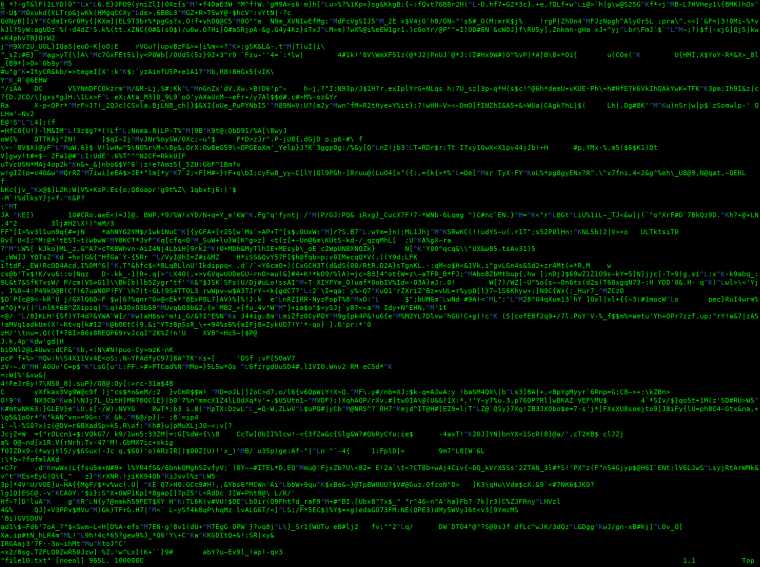
    < /dev/urandom tr -dc "0101" | head -c10000 > file.txt
    

    Example:

    0_1513688288811_binary-image.png

    We can do the same with any number of text caricatures.


    Create a file with any character available including tabs and new lines:

    < /dev/urandom tr -dc "[:space:][:print:]" | head -c100000 > file10.txt 
    

    Example:

    0_1513689557531_random-charectures.png

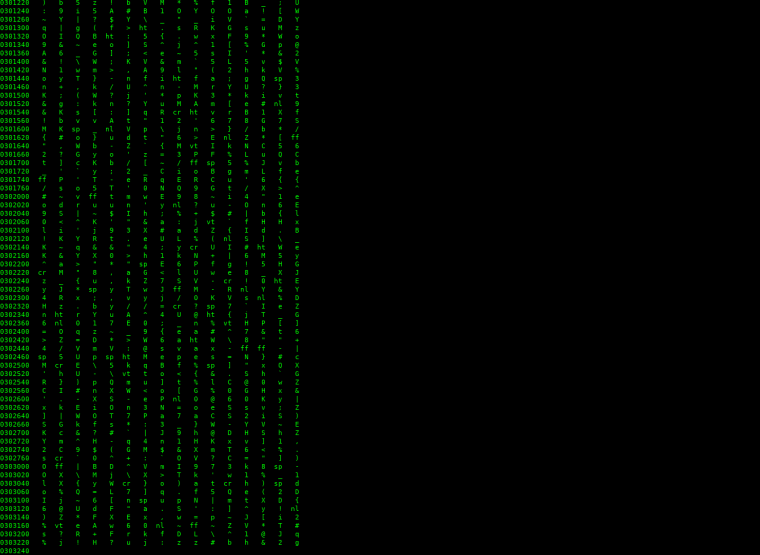
    Just for fun, output this file using the od command, or Octal Dump:

    od -a file10.txt
    

    0_1513689985780_od-output.png


    There is a lot that can be done with these few commands and the many variables to these commands, have fun!

    Linux Systems Guides random text command line od

  • Free page cache linux
    rickR rick

    !Run sync before taking any of these actions:

    Free pagecache:

    sync; echo 1 > /proc/sys/vm/drop_caches
    

    Free dentries and inodes:

    sync; echo 2 > /proc/sys/vm/drop_caches
    

    Free pagecache, dentries and inodes:

    sync; echo 3 > /proc/sys/vm/drop_caches
    
    Linux Systems Guides linux free memory clear pagecache

  • ssh_copy_id Freebsd
    rickR rick

    The scp way:

    You could type the path to id_rsa.pub, or cd into the users home directory:

    scp id_rsa.pub user@ipaddress:.ssh/authorized_keys
    
    FreeBSD Notes ssh keygen cat freebsd sshcopyid

  • Openvpn client Freebsd
    rickR rick

    Hint:

    kldload if_tun
    
    FreeBSD Notes openvpn client basic guide freebsd

  • ssh_copy_id Freebsd
    rickR rick

    Transfer the public key to a remote server from Freebsd

    Log in locally as the user you need to send the key from.

    Create the keys if they do not already exist (or if you have not already created them)

    ssh-keygen -t rsa
    

    Once this is done the public key can be transferred to the remote server.

     cat id_rsa.pub | ssh user@ipaddress 'cat >>.ssh/authorized_keys'
    

    Type in the remote user password.

    Never give the private keys to anyone

    Public keys are well, public

    Fin!

    FreeBSD Notes ssh keygen cat freebsd sshcopyid

  • Openvpn client Freebsd
    rickR rick

    Basic openvpn client Freebsd

    pkg install openvpn
    
    sysrc openvpn_enable="YES"
    
    sysrc openvpn_if="tun"
    

    Place your openvpn config file in a location unavailable to other users.

    Insure your .conf contains the proper tunnel name, in this case I’ll use ‘tun’


    This guide is basic! For simplicity of getting started; As well, service openvpn start is not required or needed in this situation!

    service openvpn start
    

    cd into the directory of your config file

    then: openvpn config.conf

    Output:

    Fri Nov 10 04:45:43 2017 library versions: OpenSSL 1.0.2k-freebsd  26 Jan 2017, LZO 2.10
    Enter Auth Username:
    Enter Auth Password:
    Fri Nov 10 04:45:50 2017 TCP/UDP: Preserving recently used remote address: [AF_INET]<ip and port will print here>
    Fri Nov 10 04:45:50 2017 UDP link local (bound): [AF_INET][undef]:0
    Fri Nov 10 04:45:50 2017 UDP link remote: [AF_INET]<ip and port will print here>
    Fri Nov 10 04:45:50 2017 WARNING: this configuration may cache passwords in memory -- use the auth-nocache option to prevent this
    Fri Nov 10 04:45:50 2017 [rick] Peer Connection Initiated with [AF_INET]<ip and port will print here>
    Fri Nov 10 04:45:51 2017 TUN/TAP device /dev/tun0 opened
    Fri Nov 10 04:45:51 2017 do_ifconfig, tt->did_ifconfig_ipv6_setup=0
    Fri Nov 10 04:45:51 2017 /sbin/ifconfig tun0 10.10.2.10 10.10.2.9 mtu 1500 netmask 255.255.255.255 up
    add net <ip will print here>: gateway 10.10.5.1
    add net 0.0.0.0: gateway 10.10.2.9
    add net 128.0.0.0: gateway 10.10.2.9
    add net 10.10.1.0: gateway 10.10.2.9
    add net 10.10.2.1: gateway 10.10.2.9
    Fri Nov 10 04:45:51 2017 Initialization Sequence Completed
    

    As you can see there is a prompt for username and password. This can be circumvented, as well as starting the connection at boot. However this is just to get you going.

    There is much more to learn!

    FreeBSD Notes openvpn client basic guide freebsd

  • Reset NodeBB admin password
    rickR rick

    Reset the NodeBB admin password

    Or any users password for that matter!

    Go to YourDomain/reset

    Type in your email. A key will be generated internally, The key expires after 2 hours.

    Goto the command line of your server and type:

    redis-cli

    This enters you into the redis console.

    Type in the redis-cli:

    hgetall reset:uid

    This will show you the account which has just used the ‘reset’ script, and print the reset code. Which will appear in the following format (this will not work for you, you need to generate your own unique ID)

    127.0.0.1:6379> hgetall reset:uid
    1) "269be29c-d523-49f0-9ecd-39f3f098ad6c"
    

    Go to YourDomain/reset/

    And type or paste the reset code:

    Example:

    YourDomain/reset{reset-uid}

    Or more specifically :

    YourDomain/reset/269be29c-d523-49f0-9ecd-39f3f098ad6c

    At this point you will be redirected to enter the new password. Once this is complete, log in with your new password.

    Fin!

    Linux Systems Guides lost admin pass reset password nodebb admin

  • Backup your Android data to a linux box with adb
    rickR rick

    Install adb:

    On Debian:

    sudo apt install android-tools-adb
    

    If your running Ubuntu:

    sudo apt install adb
    

    Place your Android device in Developer Mode: Go to settings > About Phone> and tap on this several consecutive times (maybe 5) You’ll see a note stating developer options have been enabled.

    Now go back to your settings, and you’ll see ‘Developer Options’


    (Make sure your connected to the machine via USB cable)

    !Go into Android developer options, and allow USB debugging

    If your Android device is attached as a camera, you’ll get a warning in the command line something to the effect of:

    adb: unable to connect for backup
    

    Or complaints about the fact there is nothing for the server to connect to. If so, the Android is connected as PTP and needs to be changed.


    Once the server is running, and the Android is available as a media device (MTP)

    Go to your command line and type:

    adb start-server
    

    Output:

    * daemon not running. starting it now on port 5037 *
    * daemon started successfully *
    

    Unlock the Android device and accept the RSA key from the machine you are running adb from. You will be asked to do so before moving further:

    Allow USB debugging? Click OK

    Now the two devices are connected.


    The command to backup all files on the Android device is as follows:

    adb backup -apk -shared -all -f my-android-backup.adb
    

    You can change “my-android-backup” to anything you wish, just insure the file extension is adb.

    You will be asked to create an encrypted file, if your device is not already encrypted, just type in a password you will remember!

    If your device is already encrypted, you will be required to encrypt the backup.

    The backup time will depend obviously how much you have ‘collected’ on your device, with no real vision of progress, so chill and leave it alone. ADB will quit when done.


    The backup file will be located in the user directory ( or wherever you were when you took the backup)


    To restore this backup, is just as simple, connect, and run:

    adb restore my-android-backup.adb
    

    Fin!

    Android backup android command line adb linux

  • Add a disk to linux LVM command line
    rickR rick

    If your starting from scratch, ‘imaging’ or installing linux , insure you’ve partitioned with setup LVM on the first disk for this guide. As this is just the basic setup.

    Once you’ve reached the command line, you can run lsblk to list all block devices, noticing what is a partition and what is a device, where sda would be a device, and sda1 would be a partition:

    lsblk
    

    Output:

    NAME                 MAJ:MIN RM   SIZE RO TYPE MOUNTPOINT
    sda                    8:0    0 465.8G  0 disk 
    ├─sda1                 8:1    0   243M  0 part /boot
    ├─sda2                 8:2    0     1K  0 part 
    └─sda5                 8:5    0 465.5G  0 part 
      ├─bak10--vg-root   254:0    0 465.5G  0 lvm  /
      └─bak10--vg-swap_1 254:1    0     4G  0 lvm  [SWAP]
    sdb                    8:16   0 465.8G  0 disk
    

    Once you know the device you want to expand the LVM (Logical Volume Management) in this case ‘sdb’

    Take care to notice, there are many disk identifiers aka ‘sda’ depending on the specific distro you are using

    First you’ll want to install the required tools:

    sudo apt-get install system-config-lvm
    

    Then run:

    sudo vgdisplay
    

    In this case the LVM has already been expanded, either way, take note of the volume group, which you would have been prompted to define during the OS install.

    We can see here as the volume group as ‘VG Name’ bak10-vg

    Output:

    --- Volume group ---
      VG Name               bak10-vg
      System ID             
      Format                lvm2
      Metadata Areas        2
      Metadata Sequence No  5
      VG Access             read/write
      VG Status             resizable
      MAX LV                0
      Cur LV                2
      Open LV               2
      Max PV                0
      Cur PV                2
      Act PV                2
      VG Size               931.28 GiB
      PE Size               4.00 MiB
      Total PE              238407
      Alloc PE / Size       238407 / 931.28 GiB
      Free  PE / Size       0 / 0   
      VG UUID               I3z4RM-RAsq-HfPD-FiUo-KxOZ-Jpsg-zROJPt
    

    We also need the logical volume root path, this can be found by running:

    sudo lvdisplay
    

    We can see the volume group root path is ‘LV Path /dev/bak10-vg/root’ Output:

    --- Logical volume ---
    LV Path                /dev/bak10-vg/root
    LV Name                root
    VG Name                bak10-vg
    LV UUID                ykeSJi-Q1mw-dWui-5D7p-Lr1y-wk18-swWVN8
    LV Write Access        read/write
    LV Creation host, time bak10, 2016-12-24 10:43:48 -0500
    LV Status              available
    # open                 1
    LV Size                927.28 GiB
    Current LE             237383
    Segments               2
    Allocation             inherit
    Read ahead sectors     auto
    - currently set to     256
    Block device           254:0
     
    --- Logical volume ---
    LV Path                /dev/bak10-vg/swap_1
    LV Name                swap_1
    VG Name                bak10-vg
    LV UUID                URTRk2-lcke-7oq6-TAtK-EGg8-qyTf-pAmr9Z
    LV Write Access        read/write
    LV Creation host, time bak10, 2016-12-24 10:43:48 -0500
    LV Status              available
    # open                 2
    LV Size                4.00 GiB
    Current LE             1024
    Segments               1
    Allocation             inherit
    Read ahead sectors     auto
    - currently set to     256
    Block device           254:1
    

    Now we convert the disk ‘sdb’ into a physical volume by running:

    sudo pvcreate /dev/sdb
    

    Then we add the physical volume to the volume group by extending the existing volume group to the second disk:

    sudo vgextend bak10-vg /dev/sdb
    

    Then we allocate the physical volume to the logical volume. You can allocate a specific partition or percentage of the new disk, however this is basic by adding the complete disk:

    sudo lvextend -l +100%FREE /dev/bak10-vg/root
    

    Now we must resize the volume group to the new physical drive:

    sudo resize2fs /dev/bak10-vg/root
    

    The LVM has been expanded to the second disk ‘/dev/sdb’, where the first disk contains a default and basic partitioning scheme :

    lsblk
    
    NAME                 MAJ:MIN RM   SIZE RO TYPE MOUNTPOINT
    sda                    8:0    0 465.8G  0 disk 
    ├─sda1                 8:1    0   243M  0 part /boot
    ├─sda2                 8:2    0     1K  0 part 
    └─sda5                 8:5    0 465.5G  0 part 
      ├─bak10--vg-root   254:0    0 927.3G  0 lvm  /
      └─bak10--vg-swap_1 254:1    0     4G  0 lvm  [SWAP]
    sdb                    8:16   0 465.8G  0 disk 
    └─bak10--vg-root     254:0    0 927.3G  0 lvm  /
    

    None the less, we can see the two available physical disks ‘sda and sdb’ are now part of one file system.

    Where sda contains necessary basic partitions, and the second disk is now part of the volume group as usable space.

    Fin! Enjoy your new space!

    Linux Systems Guides lvm hdd partitioning linux lvexpand
  • Login

  • Don't have an account? Register

  • Login or register to search.
  • First post
    Last post